Address
Building A1, Runteng Industrial Park, No. 4 Xishan Road, Longteng Community, Shiyan Subdistrict, Bao'an District, Shenzhen 518000, China
Work Hours
Monday to Saturday: 09:00 – 23:00 (UTC+8)
Sunday: closed
Address
Building A1, Runteng Industrial Park, No. 4 Xishan Road, Longteng Community, Shiyan Subdistrict, Bao'an District, Shenzhen 518000, China
Work Hours
Monday to Saturday: 09:00 – 23:00 (UTC+8)
Sunday: closed

Master the JHIMS R6-U inline UV laser marking machine with 9 progressive video tutorials — from installation and laser calibration to QR code marking workf.
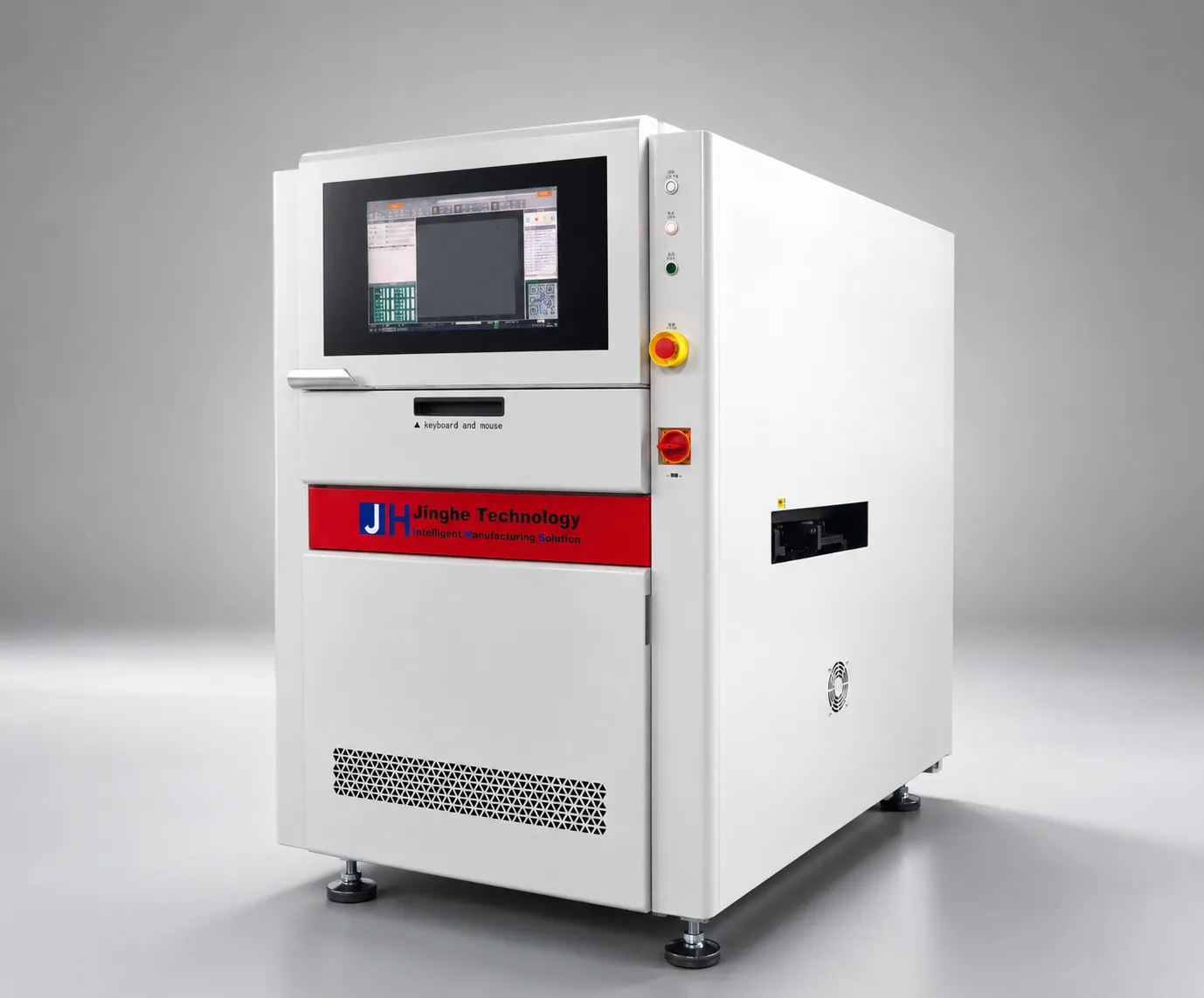
Master the JHIMS R6-U UV laser marking machine with 9 video steps — from installation and calibration to marking verification and daily upkeep. Follow along, pause, and practice each step.

Click any step to open that tutorial video. The main player above shows the full 9-step sequence.
R6-U UV laser marking machine before power-on: remove the red transport locks (see the wooden box or machine door), level it, connect the water chiller, verify coolant flow — 355nm laser diode needs continuous cooling.
Jinghe software, R6-U UV laser marking machine: three modules — Main Interface, Recipe Management, Calibration. “Laser Position”: click the crosshair to align preview to laser point, mapping coordinates to galvanometer.
UV lasers give cold marking with minimal heat-affected zone. Balance speed and quality via laser power, marking speed, frequency. White oil UV engraving: fill mode. Trust results over theory; verify on a sample board.
Manual motion control: X and Y axis, quick movement. Set conveyor track height and width per PCB; reset the track only on request. Camera on/off, magnification, visual inspection; external vs program-defined lighting.
Load and unload PCBs on the support structure for accurate positioning. In production mode the inline conveyor feeds boards automatically. User account: log out when done to protect recipes from unauthorized edits.
UV workflow: place the QR code object in a single template, align the PCB by CCD, run the marking cycle; online barcode reader verifies each mark. Panelized boards repeat per panel with automatic fiducial correction.
In the template editor, master alignment, rotation and centering — 80% of daily design tasks. For complex work, import DXF files instead of redrawing. Set the mark origin and verify positions in preview before saving.
Bad Mark: skip QR code engraving on defective PCB panels — set the Bad Mark position in the template, teach the vision system the defect indicator, enable the skip function; the camera flags it and marking continues.
Too light: more power or slower speed. Too dark: less power, check focus. Missed: CCD alignment, Bad Mark. Blurred: clean CCD lens, check galvanometer calibration. Inconsistent: chiller temperature. Decision tree below.
| Symptom | Probable Cause | Probability | Correction |
|---|---|---|---|
| Marks too light / invisible | Laser power too low or focus drift | 30% | Increase power in 2% steps; verify focus height |
| Marks too dark / burning | Power too high for material | 20% | Reduce power; switch to fill mode for white oil |
| Blurred or stretched edges | CCD lens dirty or galvanometer misaligned | 35% | Clean CCD lens; recalibrate laser position |
| Inconsistent mark density | Chiller temperature drift | 15% | Check coolant level and chiller operation |
| Missed marks on some panels | Bad Mark misdetection or fiducial error | 10% | Verify Bad Mark pad; re-teach fiducials |
| QR code unreadable | QR merged with other objects | 25% | Re-create QR as standalone object; never group |
| Servo motor alarm | Motor cable loose; XYZ transport lock blocks not removed; missing neutral return | – | Reconnect motor cables; remove all axis lock blocks; trace and rejoin the neutral line |
| “Transport board jam” alert | Track width too narrow; belt/pulley seized; photoelectric sensor obstructed | – | Re-adjust track width and save the recipe; clean belt, pulley and sensor area |
| Mark size differs from camera view | PCB not lifted or flattened; camera scale not calibrated | – | Check the board-lift unit; recalibrate camera display scale |
| Mark position offset | PCB not flat or deformed; laser calibration off; template not centered | – | Lift board flat (support sagging panels); redo laser calibration; center the template |
| No laser output (UV model) | Chiller off or in alarm; coolant tube folded or leaking; software opened before warm-up; no marking signal | – | Start chiller and clear alarm; check coolant line; wait for warm-up; check marking card output |
| Galvo no scan or line output | Galvo power missing; galvo plug loose | – | Verify galvo input/output voltage (DC 15V +/-); reseat the galvo plug |
| Board entry position inconsistent | Loading delay too short; belt speed too high causing bounce | – | Increase loading delay; lower belt and deceleration speed |
| Flip track not flipping | Motor stuck or driver alarm; motor power cable loose | – | Check driver alarm and motor load; reseat motor power cable |
| Mouse or keyboard frozen | USB hub not powered; USB connector loose | – | Check hub power LED; reseat mouse and keyboard connectors |
| PC lags or auto-restarts | Poor cooling; insufficient supply voltage | – | Clean cooling vents and filters; check plug and supply voltage |
| Laser power weakens | Dust on field lens or mirrors; optical path drifted | – | Clean optics with alcohol and lint-free cloth; check and adjust the optical path |
| No power or contactor chatters | Unstable voltage; neutral line broken; E-stop pressed | – | Measure supply voltage; check the neutral line; release the E-stop |
| Door-lock alarm or cannot close | Sensor out of range; cylinder not reaching the lock | – | Adjust door-lock sensor distance; check cylinder travel |
| Mark light on one side | Laser-on delay too early or late; board uneven | – | Adjust laser-on delay (negative values allowed); flatten or replace the board |
| Track width mismatch | Track not homed; track belt loose | – | Re-home the track and recalibrate width; tension the sync belt |
| Camera image frozen (machine runs) | Camera IP changed or conflict; camera power off; network cable loose | – | Check camera IP; verify camera power; tighten the network cable |
Start with the symptom table above, then apply the Six Most Common Operator Mistakes below — in most cases the root cause is power, focus, optics cleanliness, or chiller temperature.
| Consumable | Part No. | Replacement Cycle | Note |
|---|---|---|---|
| Pre-filter | 3.9.4.0.0012 | 1-3 months | Replace when suction drops |
| Chiller filter element | 3.6.6.0.0315 | 3-6 months | Chiller-equipped models only |
| Main filter | 3.9.4.0.0013 | 6-12 months | – |
| Gas filter | 3.9.4.0.0014 | 6-12 months | – |
| Photoelectric sensor (spare) | 2.5.1.1.0004 | – | Omron; included with machine |
| Electronic relay (spare) | 2.6.6.2.0003 | – | Omron; included with machine |
| Drive belts (spare) | 3.2.2.1.0268 / 3.2.2.1.0054 | – | 2 pieces each, included |
| Frequency | Task | Method | Est. Time |
|---|---|---|---|
| Daily | Check chiller coolant level | Visual level check | 2 min |
| Daily | Verify marking quality on first board | Scan QR with reader; visual check | 3 min |
| Weekly | Clean CCD lens | Lens tissue + approved cleaner | 10 min |
| Weekly | Clean conveyor track and support rails | Vacuum + lint-free cloth | 10 min |
| Monthly | Recalibrate laser position | Crosshair tool in software | 5 min |
| Monthly | Inspect mirrors and protective window | Visual; clean if dusty | 15 min |
| Quarterly | Replace chiller coolant | Per chiller manual | 20 min |
| Quarterly | Full safety system check | Interlock, e-stop, housing seals | 15 min |
| Parameter | Recommended | Allowed Range | Notes |
|---|---|---|---|
| Laser power | Material-dependent | 0–100% | Adjust in 2% steps |
| Marking speed | Medium default | Slow–Fast | Balance speed vs depth |
| Focus height | Per lens spec | ±0.5mm | Verify after head service |
| QR size | ≥1.2×1.2mm | 1.2×1.2mm min | Smaller fails readability |
| Chiller temp | Per chiller spec | ±1°C | Stable temp = stable power |
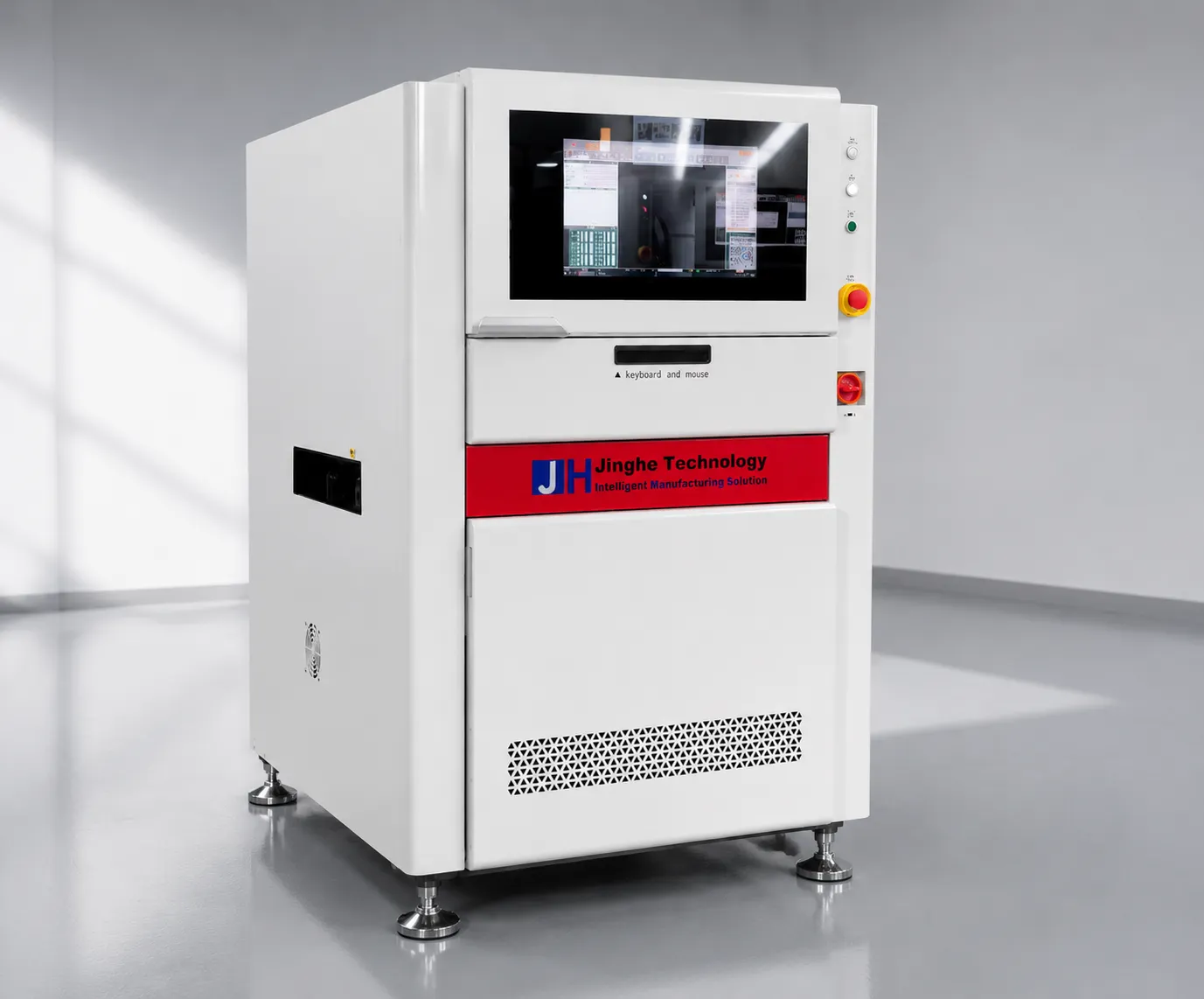 FeaturedJHIMS R6-U UV Laser Marking MachineInline UV laser marking · 5W 355nm · ±0.02mm accuracy · CCD+MARK vision.View product →
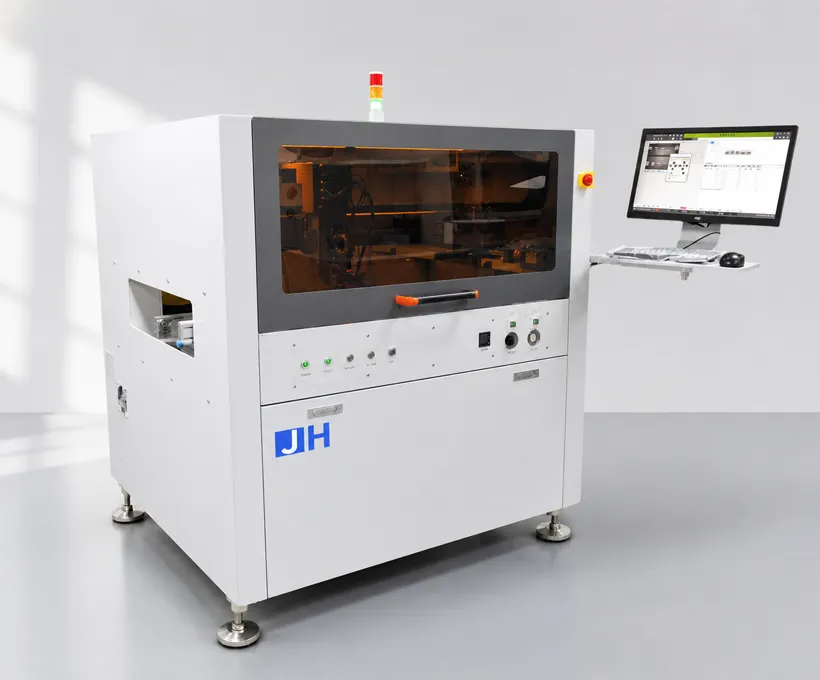 CompanionJH-D900 High-Precision Dispensing MachineHigh-speed precision dispensing for SMT PCB assembly lines.View product →
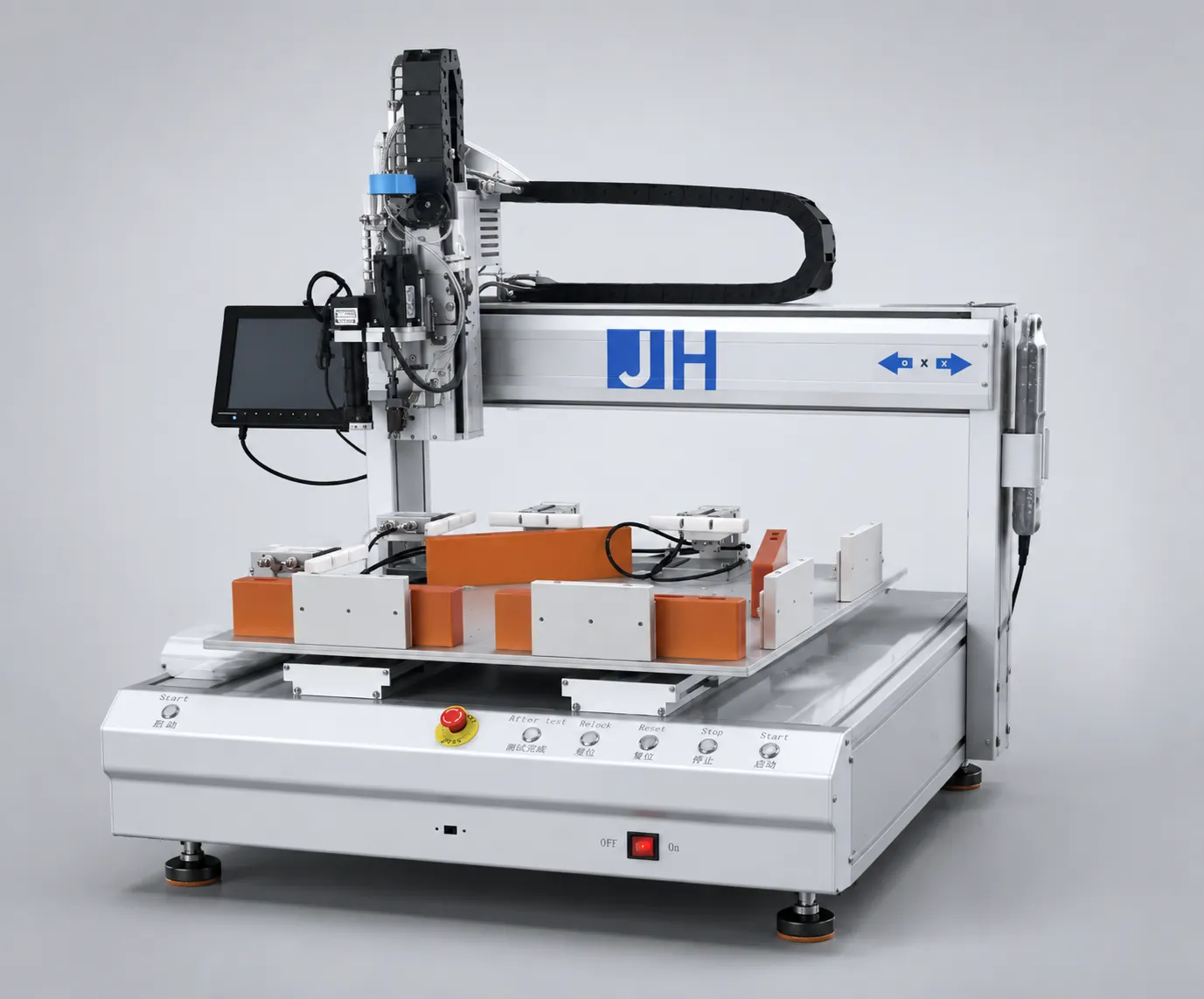 RelatedJHIMS ZM500 Screw Tightening & Removal MachineAutomated screw tightening and removal for electronics assembly.View product →
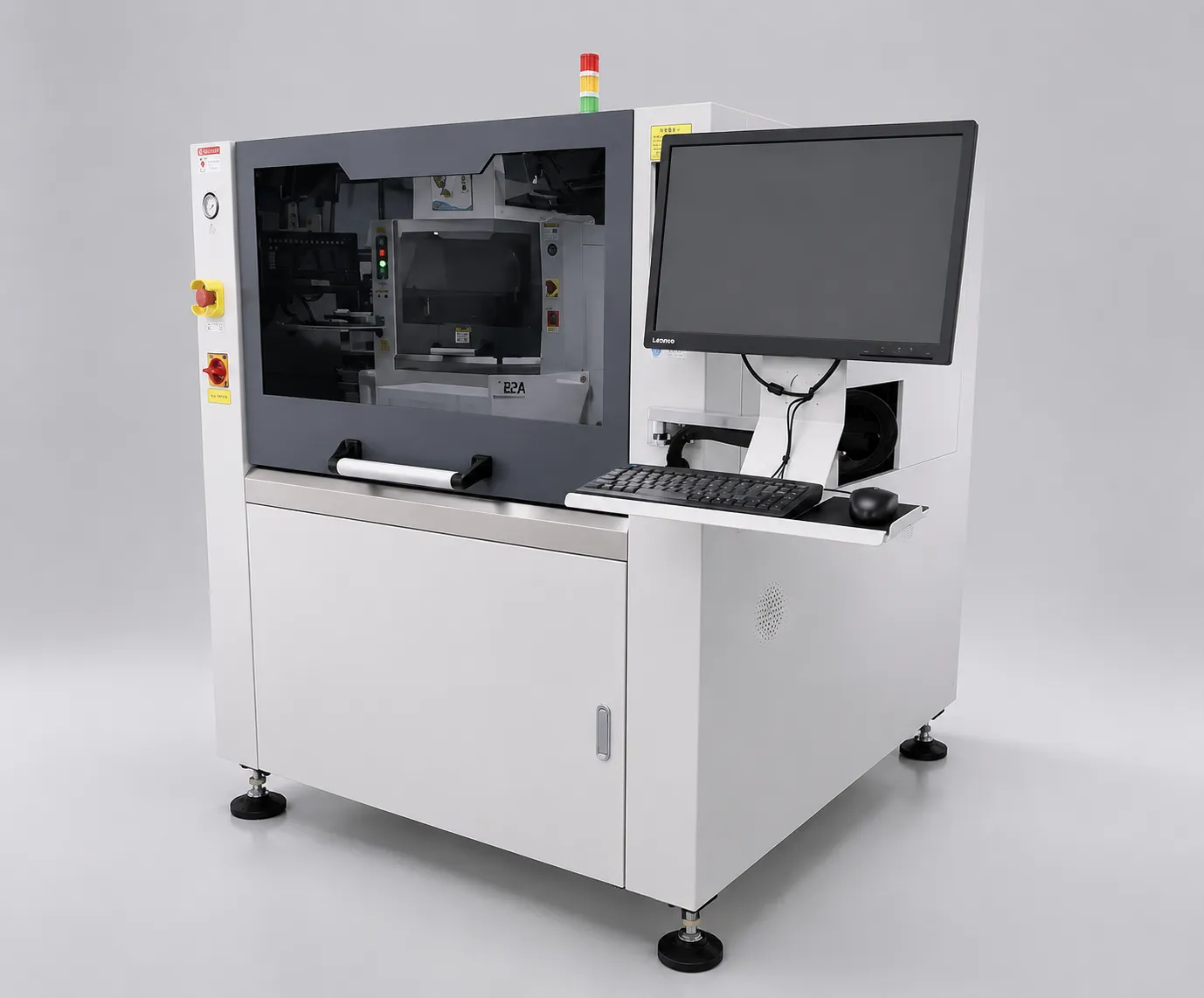 RelatedJHIMS L5 Solder Paste PrinterAutomatic SMT stencil printer – precision printing for the SMT line.View product →
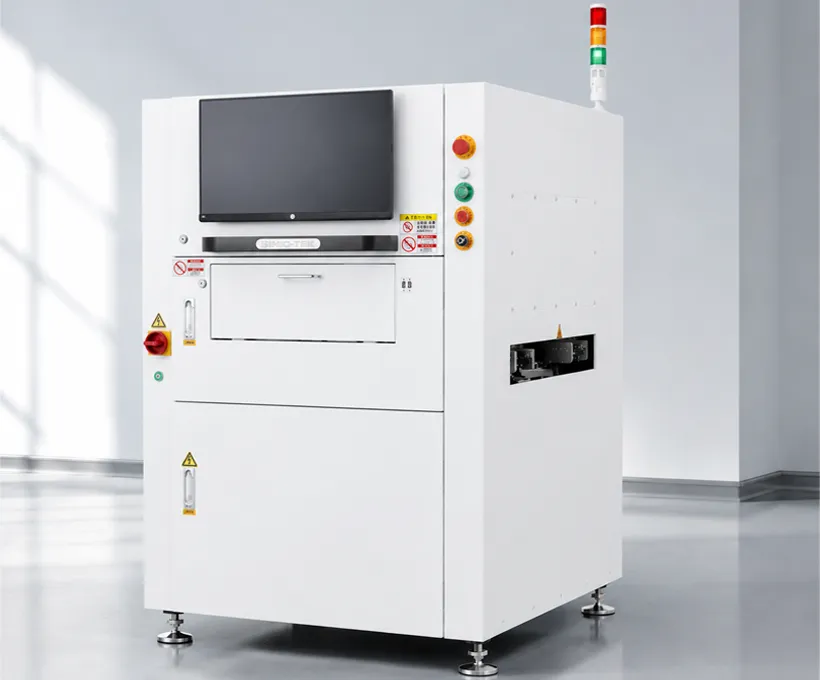 RelatedJHIMS S630 3D SPI3D solder paste inspection – verifies print quality before reflow.View product →
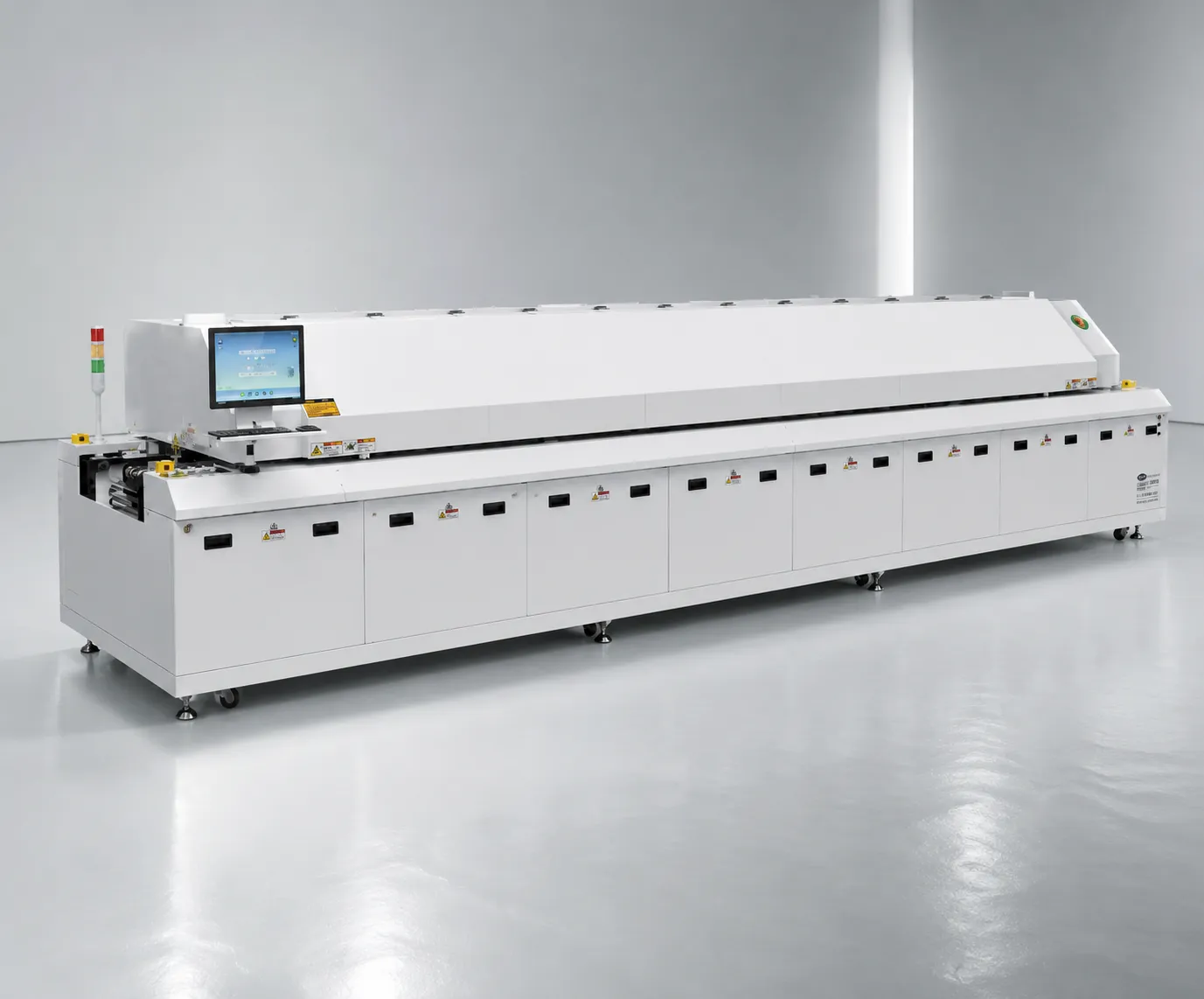 CompanionJHIMS R10 Reflow OvenLead-free hot-air reflow soldering for SMT lines – 20 heating zones, up to 300°C peak.View product →
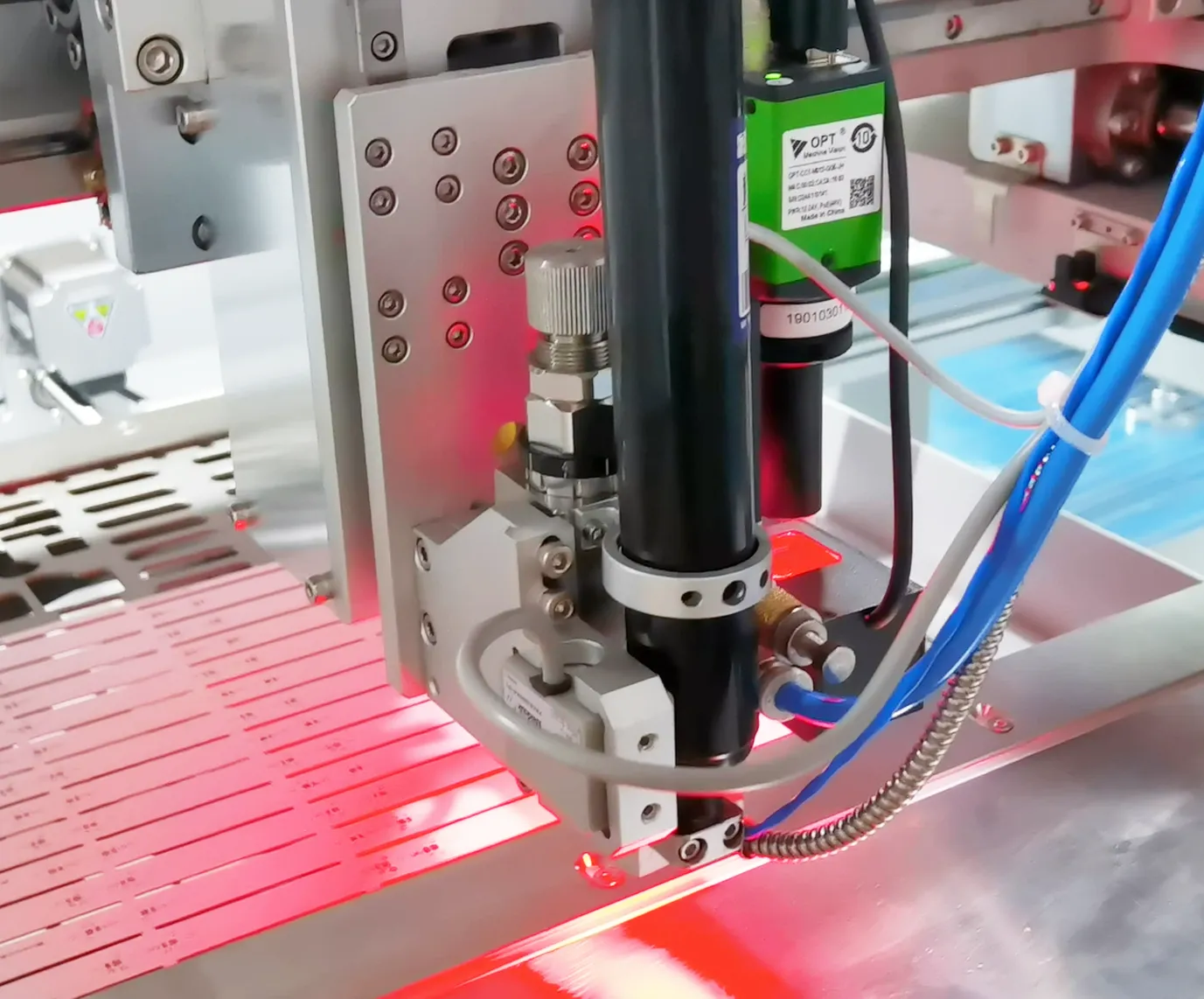 GuideD900 Dispensing Machine GuideStep-by-step operation guide for the JH-D900 automatic dispensing machine.Read article →
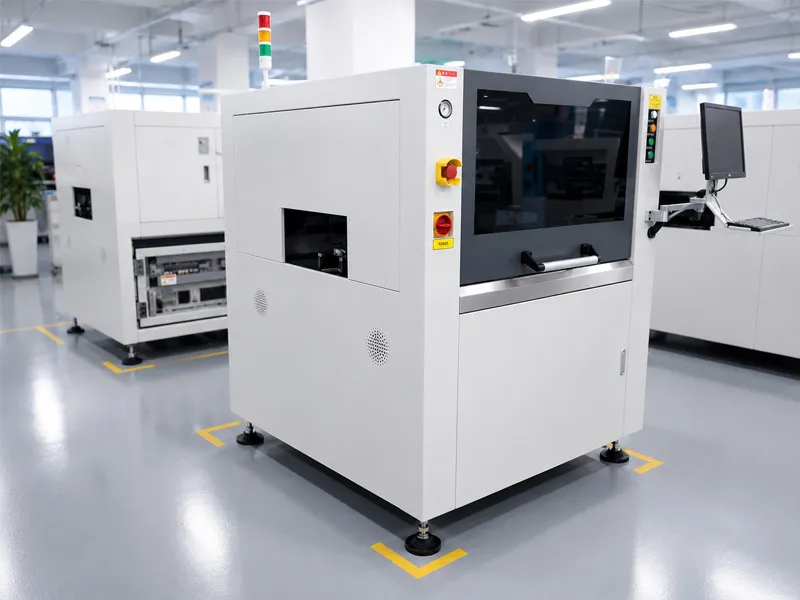 GuideL5 Solder Paste Printer GuideHow to operate and maintain the JHIMS L5 high-precision SMT stencil printer.Read article →
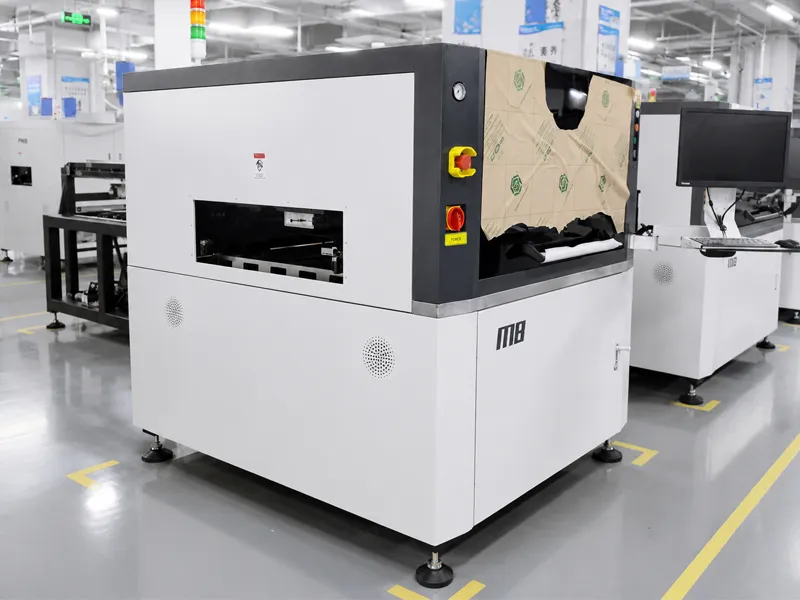 GuideM8 Solder Paste Printer GuideStep-by-step video guide for the JHIMS M8 automatic solder paste printer.Read article →
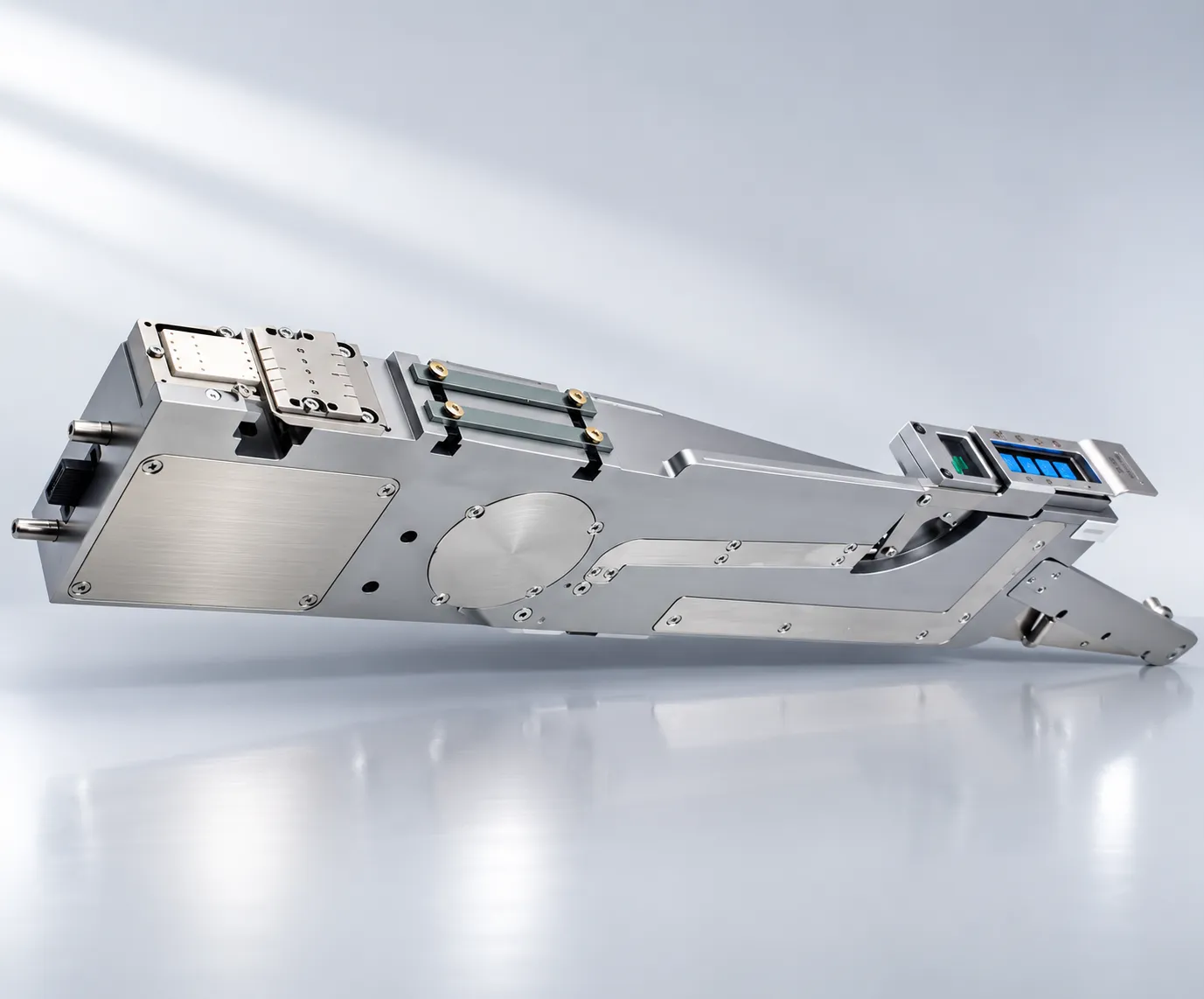 GuideJHIMS LMFD-LB Label Feeder GuideStep-by-step operation guide for the LMFD-LB label feeder for FUJI NXT.Read article →
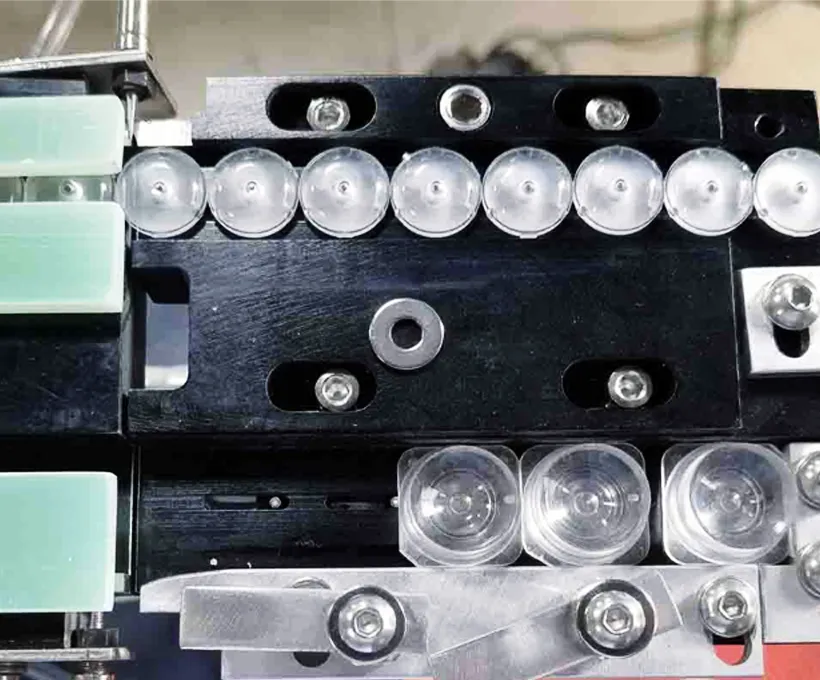 GuideDPS-2 Lens Feeder Troubleshooting Guide5 common lens-feeder issues ranked by probability with step-by-step fixes – most resolved in under 10 minutes.Read article →SupportTechnical SupportGlobal after-sales support, remote training, spare parts and service requests.Read article →
Contact our engineers for a free evaluation, first reply within 12 working hours (Mon–Sat, 09:00–23:00 China Standard Time, UTC+8) — we will help you plan installation, calibration and operator training.